Showing posts with label iOS. Show all posts

Thursday, May 22, 2014

How2App: Notability

How2App is a video tutorial series about how to start using an app and learn the basics of using it.

This week, I made a video detailing the awesome features of Notability.

For your viewing pleasure

Notability is truly an A+ app. I highly recommend it to any student.

Monday, May 5, 2014

Google Releases Standalone Apps for Docs and Sheets

Since it was first released in 2010, Google Docs has been one of the most popular Document editing applications, alongside Sheets for spreadsheets and Slides for presentations. In 2012, Google furthered the functionality of these applications by introducing Google Drive. While it had been possible to use Docs as a file storage system, Drive made it official with increased storage space and a desktop client. Now, Google is taking another step forward by releasing standalone applications for Docs and Sheets on iOS and Android (with a Slides app coming soon).

Google's current Drive app offerings on Chrome

With the release of these apps, Google has removed the editing functionality from the main Drive app on iOS and Android. Instead, with the new update, Drive now opens documents and spreadsheets in their own standalone apps, and prompts you to download them if you haven't already.

Docs and Sheets on an iPhone

The Good:

  • Simplified apps are easy to use
  • Accessing specific document type (document, spreadsheet, etc.) is faster
  • Capable replacement for Microsoft's and Apple's office suites
  • Separate applications allow Google to quickly fix bugs on any individual app
  • Easy to collaborate with others on files
The Bad:
  • No image insertion support
  • Can be more annoying to manage multiple apps
  • Lack certain features that make editing smoother
  • No Slides app as of 5-5-2014
Overall, I like the direction that Google is taking with their new standalones. Touting separate apps for each of the main document types, Google is now capable of going toe-to-toe with Apple's offerings on the iPad - Docs for Pages, Sheets for Numbers, and Slides for Keynote. Though some functionality is left to be desired, I am sure that Google will continuously update in the future and listen to user concerns.

Friday, March 14, 2014

How2App: Subtext

How2App is a video tutorial series about how to start using an app and learn the basics of using it.


This week's app, Subtext, is a classroom-based reading app that allows teachers to keep track of their students' reading progress and allows them to distribute assignments and exercises to their students.

Thursday, March 6, 2014

Chromebook vs. iPad

1:1 programs and technology integration is a recent trend sweeping the nation. Schools seek to use technology to augment the learning process. Indeed, many resources exist online that help students of all ages and grades with learning new concepts. I myself take notes over PDFs, as I find it a much more efficient process that the classic pen-and-paper. A question that every school district needs to ask is "What device to use?". Though my school uses iPads, I recently have had the opportunity to use a Samsung Chromebook to test its capabilities vs. the iPad's. Here are the pros and cons of the Chromebook that I have found so far:

Pros:


  • Deep integration with Google Services
  • Full keyboard
  • 2 USB Ports (1 USB 2.0 and 1 USB 3.0)
  • 1 HDMI Port
  • 1 Standard SD Card Slot
  • Ability to expand to an external hard drive or flash drive
  • Chromecast Support
  • Chrome App Store
  • Ability to use extensions
  • 11.6 inch screen
  • Ability to plug in a full keyboard and a mouse
Cons:
  • Little to no ability to annotate .PDF files
  • Bulky
  • Trackpad is difficult to use for larger hands
  • Somewhat flimsy plastic frame
Overall, I find that the iPad is currently the better option for schoolwork. The touchscreen allows for very user-friendly interaction, and it has a much wider selection of applications available. Still, some features such as USB ports and the full keyboard are sorely missed features on the iPad.

Friday, January 31, 2014

Swiftkey Note - A Review

Keeping up with the teacher while you take notes is a common problem for a student. The human body simply cannot write fast enough. You might say "But surely this problem can be solved with technology. Isn't typing faster than hand writing?". While it is true that typing is faster on average, it still is not enough. A new app, however, is trying to solve this in its own way: SwiftKey Note.
"Your notes, effortlessly organized."
Touting itself as the "Smarter autocorrect that knows you", SwiftKey Note is a new iOS application that aims to make note taking on iOS devices a more efficient process. The more you use it, the more the application learns about how you type. Simply put, once you use the application for a while, it will be able to predict what word you want to type next.

You know you're best friends when you can finish each other's sentences
Indeed, taking notes on SwiftKey Note is a more efficient process. The application is very good at suggesting words that come next, inserting it into the sentence with a simple tap. Of course, you'll need to type out the word yourself if none of the suggestions match, but don't worry - it'll learn.

Another great feature of the app is Evernote integration. If you haven't heard about it by now, Evernote is a great multi-platform note taking service. Once you sign up for it, any notes you take with it are saved to your account, and you can access them anywhere though your computer, phone, or tablet. SwiftKey Note lets you save your notes to Evernote and access old ones. Forget to bring your iPad to school? You'll still be able to access your notes on your phone or computer through Evernote.

"Of course, you'll need to type out the word yourself if none of the suggestions match, but don't worry - it'll learn."

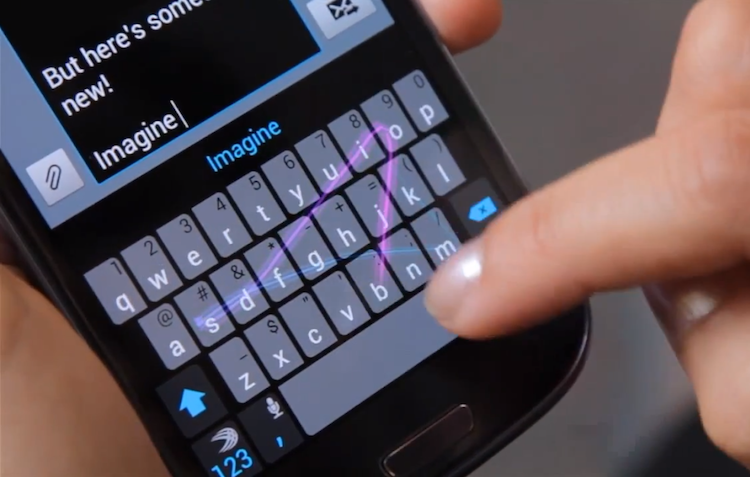
One of the things that I feel is missing from SwiftKey Note is flow typing. Anyone who has used the SwiftKey keyboard, Google Keyboard or Swype Keyboard on an Android device knows what I'm talking about. It's a key feature in modern smart devices: the ability to type words without having to remove your finger from the screen. Rather than tap out each letter, you can simply tap the first letter and then glide your finger across the screen to each successive letter. The result is an even faster typing experience. SwiftKey Keyboard for Android has this baked in, but it's missing in the iOS SwiftKey Note app. Maybe it's a feature that will be added in a future update, or maybe it's a limitation of iOS itself, but the lack of flow typing is one of the few weak points of the app.
Flow-style typing demonstrated on SwiftKey for Android
Overall, SwiftKey Note gets a 9 out of 10. It has smarter auto correction that learns from you, and syncs your notes with Evernote so that you'll always have access to them from any device. The lack of flow typing is sorely missed by anyone who has used the feature on Android. Still, typing efficiency is indeed increased while using this app, and will continue to do so the longer the app learns from you. For a student trying to take notes in class, or just anyone trying to increase their typing speed, SwiftKey Note is definitely worth checking out.